Getting Started
A quick guide to get started with the Powerlines plugin.
Installing the Plugin
Download
Download the plugin from the Fab tab in the Epic Games Launcher.
Install
Click Install to engine and select your installed Unreal Engine version.
Open Plugins Window
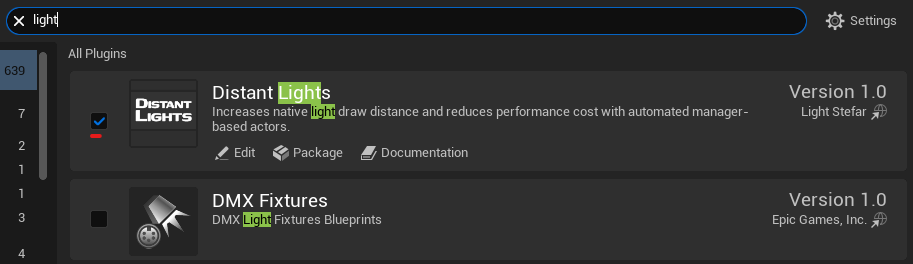
Open your project, go to Edit → Plugins, and find the Distant Lights plugin window.
lights in search bar.Enable the Plugin
Enable the plugin by checking its box as shown below.
Quickstart
Navigate to the Plugin Folder
Open the Content Browser and navigate to the Powerlines plugin folder.
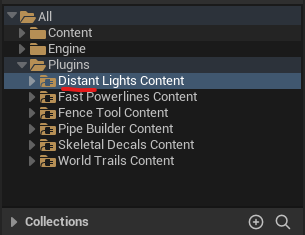
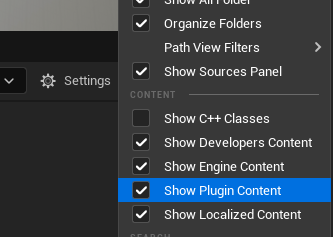
Add Distant Lights Actor

Navifate to Place Actors tab, select Lights category, find Distant Lights actor and drag the actor from there into level.

Add Distant Point Light
Select Distant Point Light or Spot Light from the same category in Place Actors tab and drag drog the actor inside distant lights box. Optionally, modufy default paramaters of light.
Check Result
Change the camera position and increase distance to distant lights to ensure everything is working.
Or you can simply press visibility icon of Distant Lights manager in Outliner tab.
Refresh checkbox in Distant Lights manager to regenerate distant lights.