Fog Area
Get on FabFog Area is a handy, blueprint-based tool that adds procedural, noise-driven local fog to your scenes. It is easy to use and highly customizable. The package includes pre-baked noise textures for optimized runtime performance. The core fog shader supports two types of local volumes: sphere and box.
Quickstart
To see local fog in action right away, drag a Fog Area blueprint actor from the Content Browser or the Place Actors tab into your scene.
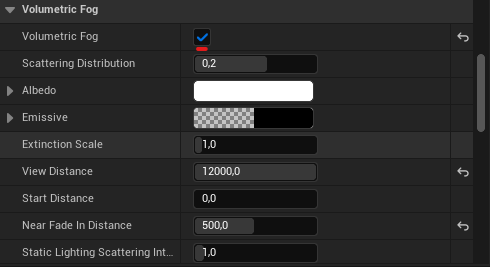
Volumetric Fog is enabled in your Exponential Height Fog actor.
Material Modes
Splitting materials into dynamic and static types helps boost performance. Static materials avoid creating a dynamic material instance for every fog actor in the scene, reducing overhead.
Almost all properties available in the fog shader are exposed in the Fog Area actor. You can configure a dynamic fog area with your preferred settings and then transfer those settings to a static version without needing to open the Material Editor.
| Variable | Default Value | Description |
|---|---|---|
| Box Shape | false | Toggle between box and sphere shape |
| Material | None | Reference to a static material. If Material Mode is set to static but this is null, it falls back to dynamic material |
General Data
| Variable | Default Value | Description |
|---|---|---|
| Emissive Color | N/A | Color emitted by the fog |
| Base Color | N/A | Primary color of the fog volume |
| Density | 1.0 | Thickness/density of the fog |
| Mask Margin | 3.0 | Edge softness/falloff of fog mask, applies to box and sphere shapes |
Wind
The wind direction can be set to either Local or World space using the Wind World Space variable.
- Local Wind: Driven by the actor’s forward (X) axis.
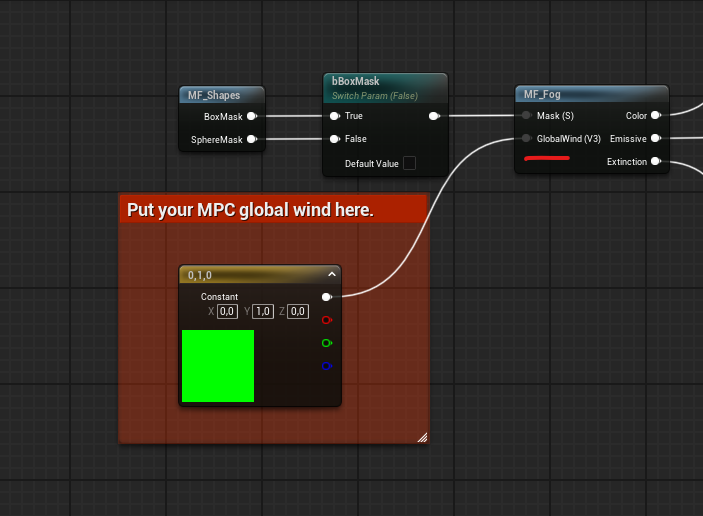
- World Wind: World Wind uses a global direction. While it is technically possible to pass per-instance data to static materials using Custom Primitive Data, I chose to keep the shader simpler and avoid that complexity. Instead, for world-space wind, connect your global wind vector (e.g., from a Material Parameter Collection) to the Global Wind input pin in the Fog shader and recompile.
| Variable | Default Value | Description |
|---|---|---|
| Wind Speed | 1.0 | Speed of wind movement |
Noise
| Variable | Default Value | Description |
|---|---|---|
| Channel | R | Texture channel used for sampling the noise texture |
| Scale | 2.5 | Scale multiplier for noise texture |
| Sharpness | 0.35 | Controls the softness or contrast of the noise texture |
| Noise Texture | None | Allows overriding the default 3D noise texture |
| Distortion Intensity | 0.0 | Strength of distortion effect applied to base noise |
| Distortion Scale | 4.0 | Scale the sampling size of distortion texture |
| Distortion Speed | 0.5 | Control the speed of distortion pan |
| Distortion Texture | None | Allows overriding the default 3D distortion texture |
Shape Data
Allows you to mask the fog with a 2D texture, creating any shapes.
| Variable | Default Value | Description |
|---|---|---|
| Use Shape | false | Toggle shape-based fog masking |
| Shape Texture | None | 2D texture used for fog masking |
| Channel | R | Texture channel used for shape sampling |
| Rotation | 0.0 | Rotation angle of shape texture (in radians) |
| Scale | 1.0 | Scale multiplier for shape texture |
Advanced
| Variable | Default Value | Description |
|---|---|---|
| Trace Surface | false | A one-time operation that traces the surface along the negative Z axis, aligns the actor with the hit normal, and then resets itself to false. Useful for placing fog on terrain. |
| Max Draw Distance | 25000.0 | Maximum distance at which fog mesh is rendered (in world units) |
Modes
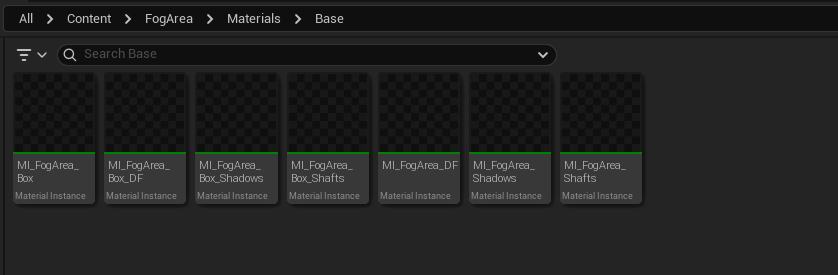
Fog Area includes three specialized operational modes: Shadows, Distance Field, and Light Shafts.
Under the hood this modes are just regular material instances with pre-configured shader switches.
Materials are stored as Soft pointers to minimize memory usage and reduce dependencies from a Fog area actor.
Shader Complexity
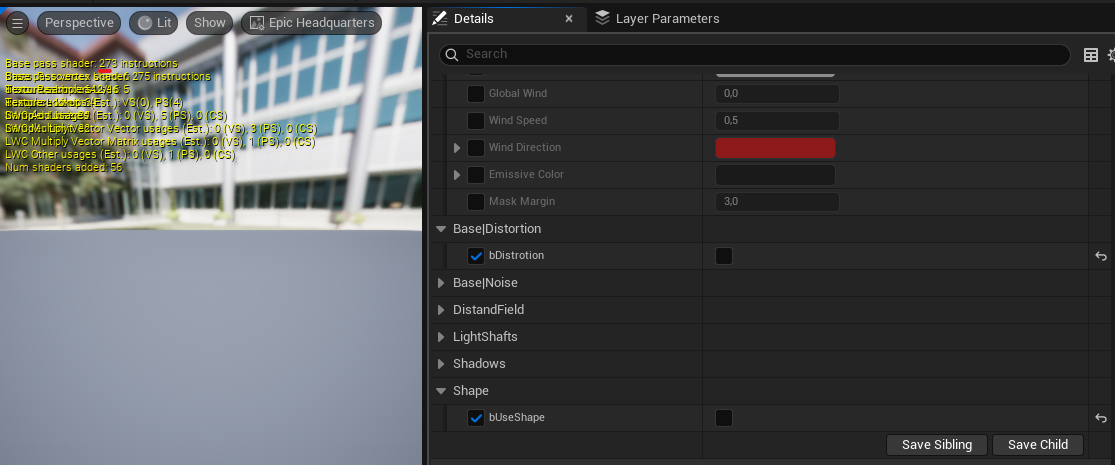
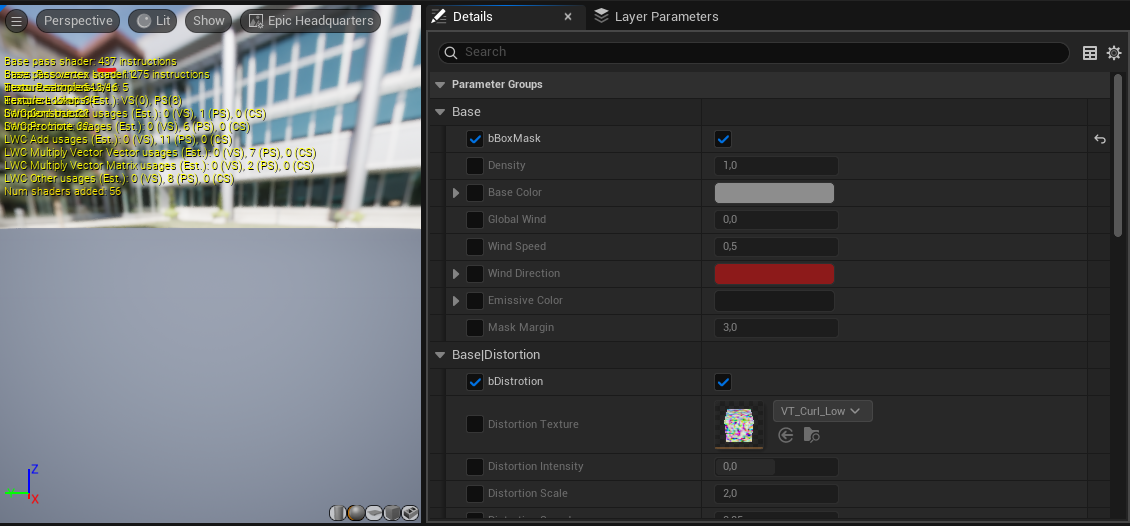
The primary reason for splitting the material into distinct instances is performance. By pre-configuring the shader switches, the number of shader instructions is greatly reduced, allowing you to use many instances without worrying about performance impact.
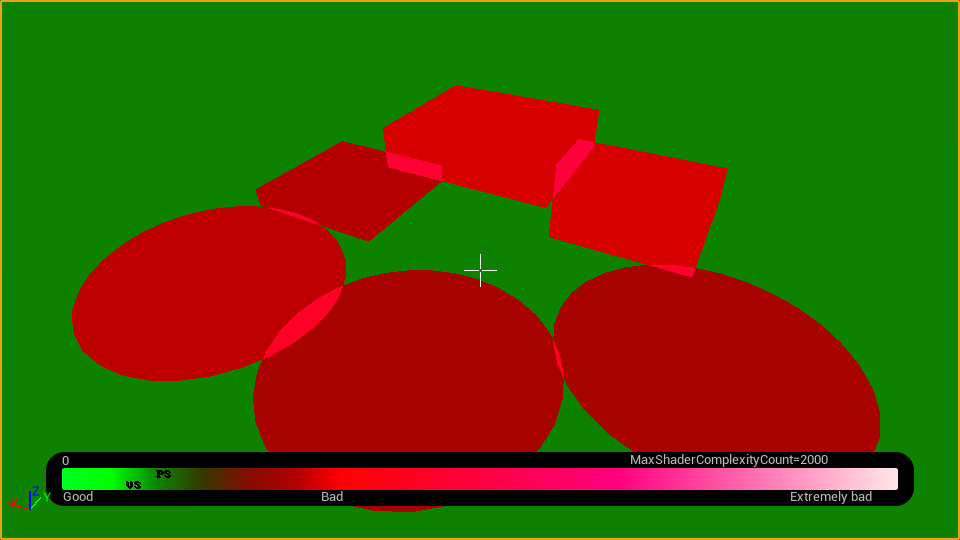
Bellow is an example map in Shader Complexity debug view with different modes active on various Fog Area actors.
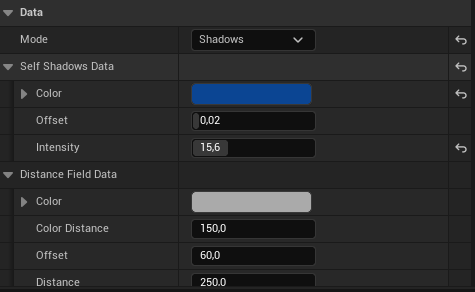
Self Shadows Data
| Variable | Default Value | Description |
|---|---|---|
| Color | N/A | Color of self-shadowed areas |
| Offset | 0.02 | Shadow offset distance |
| Intensity | 3.0 | Strength of self-shadow effect |
Distance Field Data
| Variable | Default Value | Description |
|---|---|---|
| Color | N/A | Distance fields base color |
| Color Distance | 150.0 | Distance threshold for color influence |
| Offset | 60.0 | Distance field sampling offset |
| Distance | 250.0 | Maximum distance for field influence |
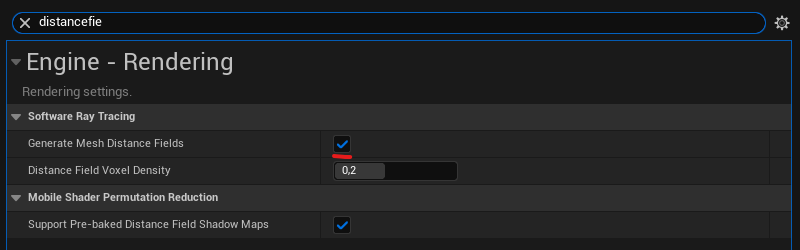
Generate Mesh Distance Fields is enabled in Project Settings.
Shafts Data (Light Shafts)
| Variable | Default Value | Description |
|---|---|---|
| Scale | 450.0 | Size/scale of light shafts |
| Sharpness | 0.0 | Controls the softness or contrast of light shafts |
| Intensity | 1.0 | Scales the intensity of the light shafts |
| Speed | 0.5 | Animation speed of the light shaft movement |