Getting Started
A quick guide to get started with the Powerlines plugin.
Installing the Plugin
Download
Download the plugin from the Fab tab in the Epic Games Launcher.
Install
Click Install to engine and select your installed Unreal Engine version.
Open Plugins Window
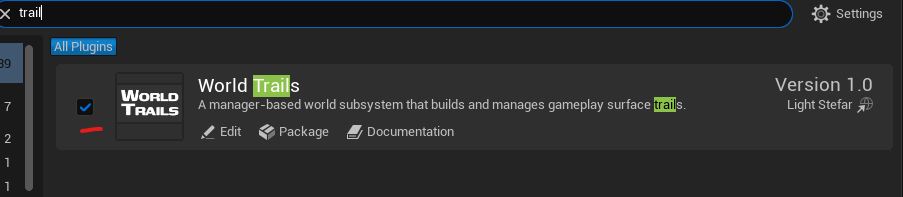
Open your project, go to Edit → Plugins, and find the World Trails plugin window.
trail in search bar.Enable the Plugin
Enable the plugin by checking its box as shown below.
Quickstart
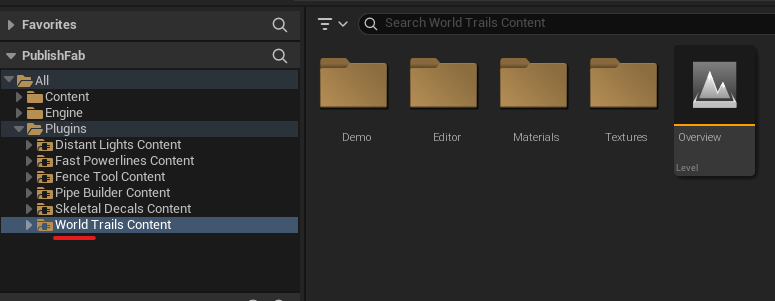
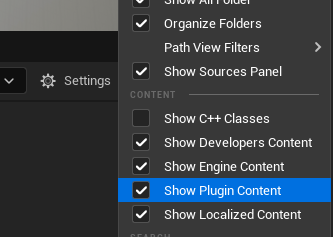
Navigate to the Plugin Folder
Open the Content Browser and navigate to the World Trails plugin folder.

Add a Trails Manager to Your Level
Type trails into the Place Actors search bar and drag the actor from there into your level.
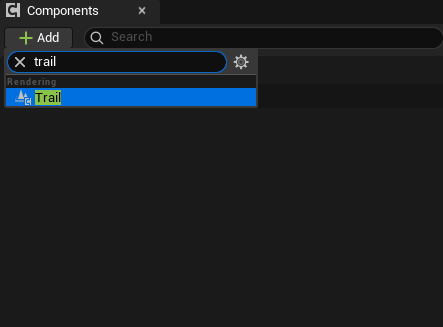
Add a Trail Component to Your Actor/Character
Open your preferred actor Blueprint and click the Add component button at the top-left. Type trail in the search bar and select Trail Component.
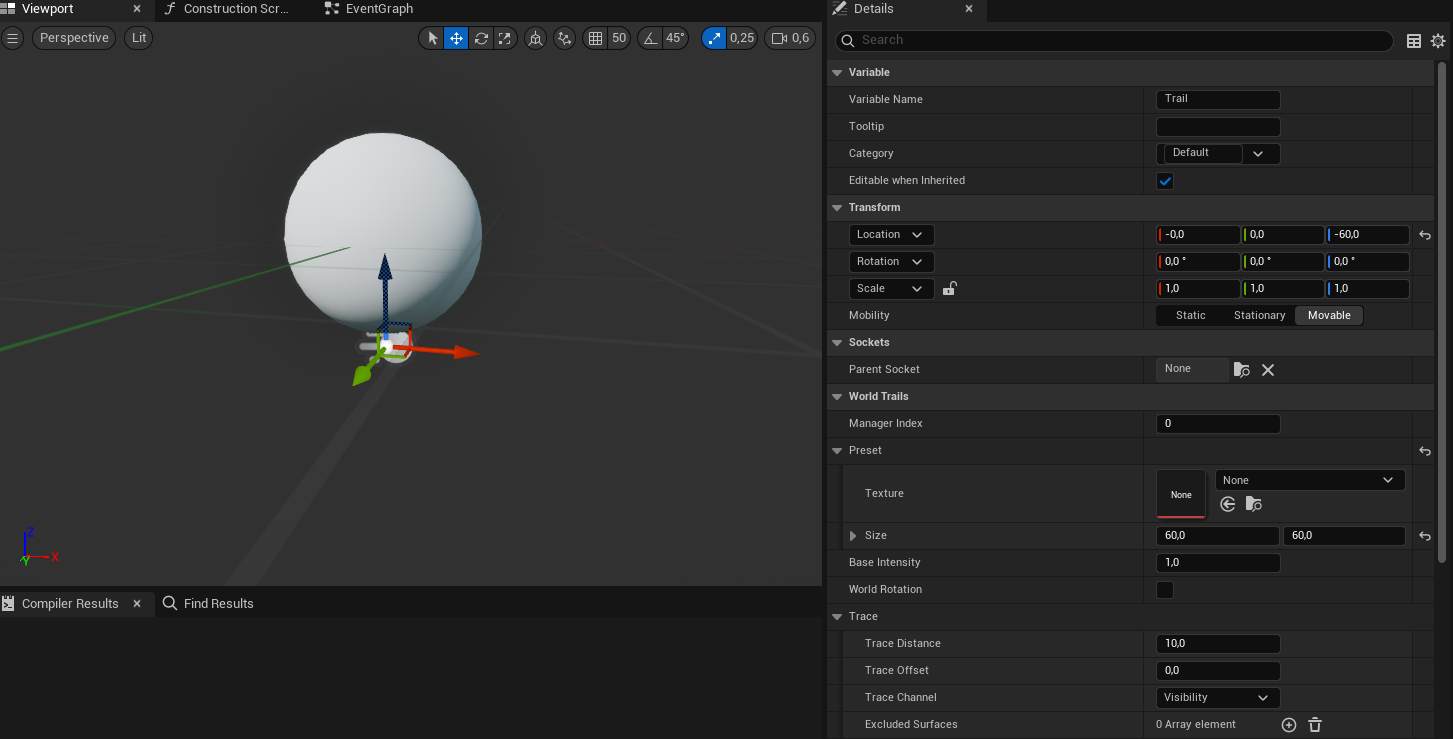
Optionally Modify Transform or Parameters
Adjust the transform or change default parameters in the Trail Component. The example below simply offsets the location on the Z axis.
Change the Surface Material
Use the built-in example material for a fast trail preview. Navigate to the Demo folder inside the plugin folder, drag and drop the M_TrailPreview material into the mesh surface slot, and press Simulate to test the result.
Foliage Trails
Follow the same steps as above, but with the following changes:
- Replace Trails Manager with Foliage Trails Manager
- Replace
M_TrailPreviewwithM_TrailPreview_Dir - Add a material function to your foliage material (see below)
Add Material Function
Open your foliage material and right-click in the graph. Type worldtrails in the search bar.
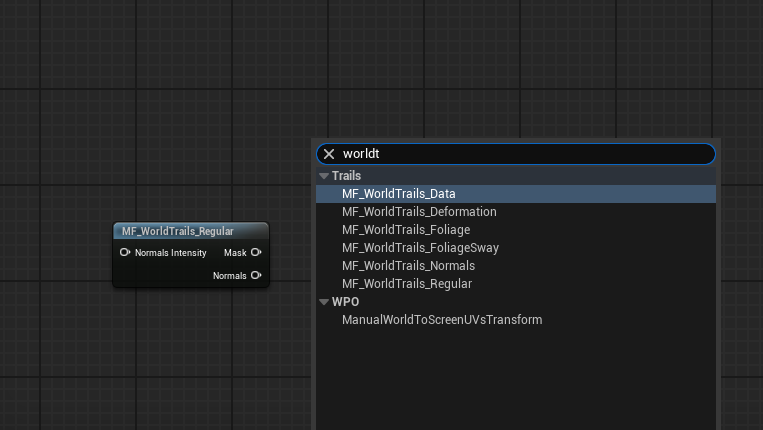
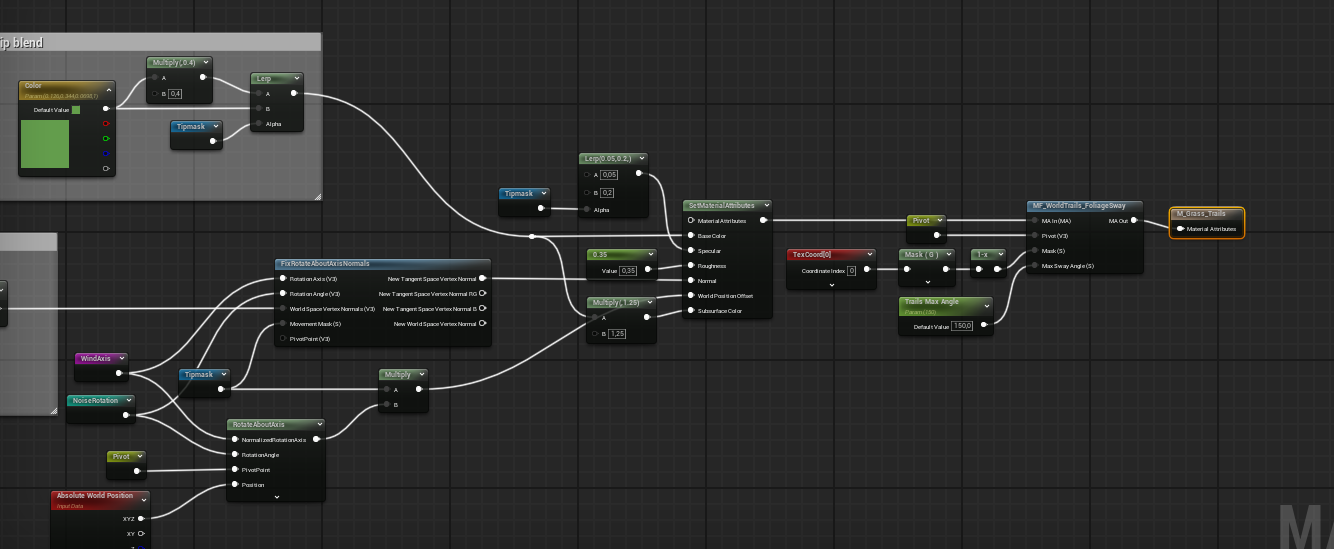
Select MF_WorldTrails_FoliageSway and add it to the material graph as shown below.
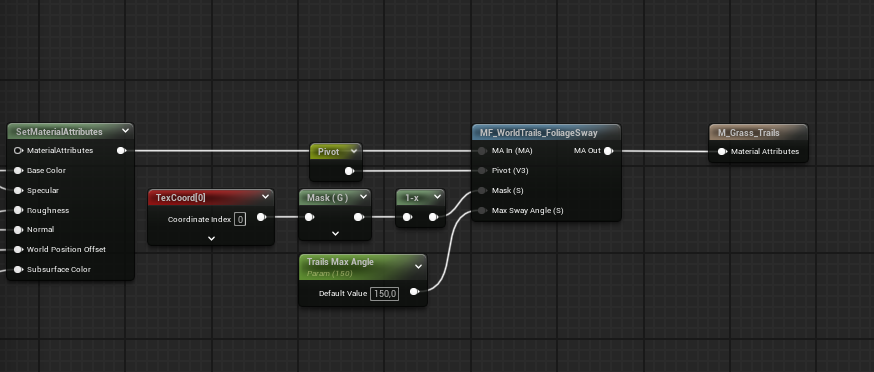
If your material doesn’t have the same pins as shown above, you need to enable Material Attributes. To do this, check Use Material Attributes in the Details panel.
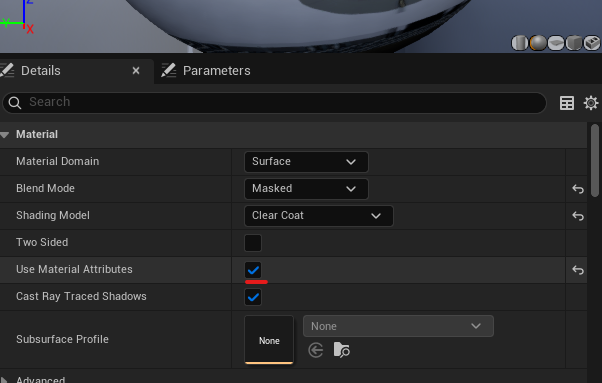
Then update your material setup to support material attributes, as shown below.